Multi-Monitor Setups: How to Choose the Right Configuration for Productivity and Gaming
1/27/2026 · Monitors · 8 min
TL;DR
- Under $200 most users will get the biggest productivity boost from adding a second 24" 1080p monitor.
- Ultrawide panels give seamless horizontal space but can be costly and require more GPU power for gaming.
- Best picks by use case:
- Productivity and multitasking: dual 24" 1080p or 27" 1440p if budget allows.
- Coding and vertical reading: 27" or 32" vertical 1440p or a tall 16:10 27" panel.
- Gaming plus chat and streams: 34" ultrawide or single primary 27" 1440p plus a small secondary 1080p.
Layouts & Use Cases
- Single monitor: simple, space saving, easiest to calibrate.
- Dual landscape: most common for multitasking; good balance of cost and workspace.
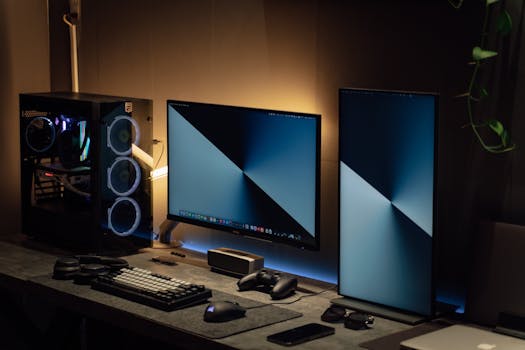
- Dual portrait: ideal for long documents, coding, or chat columns.
- Ultrawide: replaces dual setups with no bezel gap; great for immersive sims and wide spreadsheets.
- Triple or more: best for traders, creators, or heavy multitaskers, but needs desk space and GPU outputs.
Size & Pixel Density (approx.)
- 24" 1080p approx 92 PPI - readable and compact.
- 27" 1080p approx 82 PPI - may feel soft for text without scaling.
- 27" 1440p approx 108 PPI - sweet spot for clarity.
- 34" ultrawide 3440x1440 approx 110 PPI - wide canvas without large scaling.
Bezel, Alignment & Ergonomics
- Thin bezels make dual setups feel more seamless.
- Align tops of panels and match height to reduce neck strain.
- Consider VESA mounts or dual arms for flexible positioning and better ergonomics.
Refresh Rate & Response
- Match refresh rates where possible to avoid inconsistent motion between screens.
- For competitive gaming prioritize a high refresh primary monitor and leave a lower refresh secondary for chat or reference.
Panel Types
- IPS: best for color and viewing angles; preferred for creators and most productivity use.
- VA: stronger contrast for media; may have slower pixel response on fast games.
- TN: rare for modern multi-monitor setups due to poor viewing angles and color.
Connectivity & Cables
- Use DisplayPort when connecting high refresh and high resolution panels.
- HDMI is fine for most single monitor setups; check version for target refresh and resolution.
- Check GPU outputs: buy adapters or a docking station if you need more ports.
GPU Considerations
- Driving multiple high resolution monitors increases GPU workload.
- For office work a modest iGPU or entry GPU is usually fine for two 1080p displays.
- Gaming across ultrawide or multiple high res panels requires a midrange or higher GPU.
Which Setup Should You Buy?
- Choose dual 24" 1080p if you want the most cost effective productivity boost.
- Choose a 34" ultrawide if you prefer a single seamless workspace and wide aspect media.
- Choose a 27" 1440p as primary plus a 24" secondary for a balanced mix of clarity and multitasking.
Buying Checklist
- Desk depth and monitor arm compatibility.
- Matching resolution and refresh where it matters.
- Panel type for your main tasks.
- Adaptors, hubs, or docking station if GPU ports are limited.
- Consider color calibration and uniformity if you do creative work.
- Budget for a VESA mount or dual arm for best ergonomics.
Bottom Line
A second monitor is one of the most affordable ways to improve productivity. For most people a pair of 24" 1080p screens strikes the best balance of cost, space, and clarity. Ultrawide and higher resolution primaries shine for immersive work and gaming, but plan for the extra GPU and desk requirements.
Found this helpful? Check our curated picks on the home page.